Engagement
How to Use Livestream as an Admin
How to start a livestream (iOS, Android)
Select the community on which you want to start the stream.
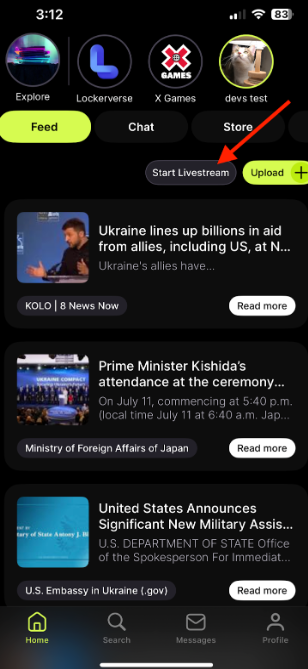
Navigate: Home Tab → Feed → Start Livestream → Go Live
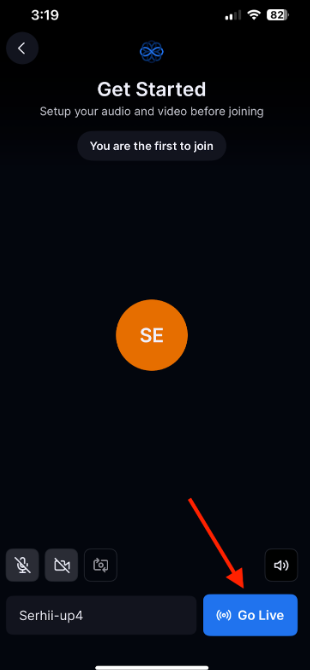
After the admin starts the live stream, the Live button will automatically appear for all community users. (Users should reload the page if the Live button does not appear.)
How to end a livestream (iOS, Android)
Press: End live button → End Session

Important: hide the Live button for other users
To hide the Live button for other users you should turn it off manually. Go to Lockerverse from web, not a mobile device. Make sure you are an admin. Once you are, do the following steps below.
Open LockerverseClick the upside down triangle
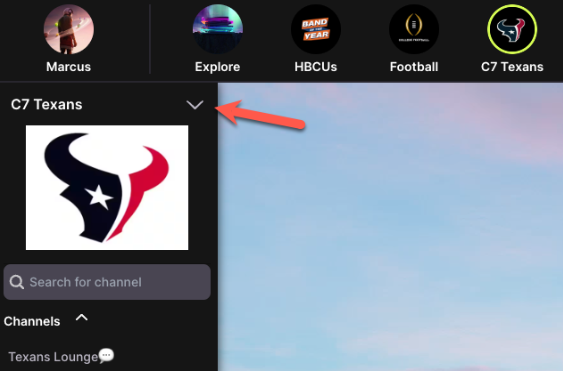
Click Community Settings
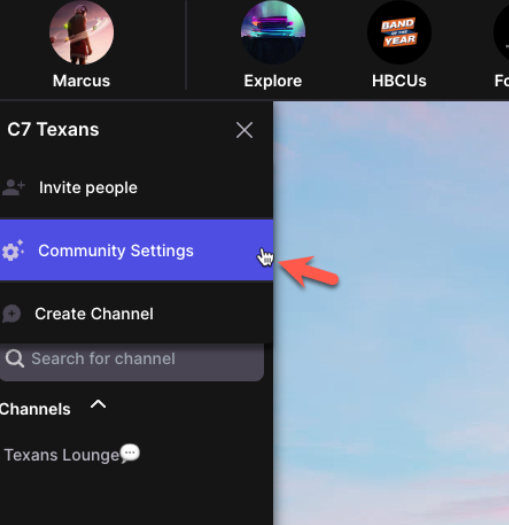
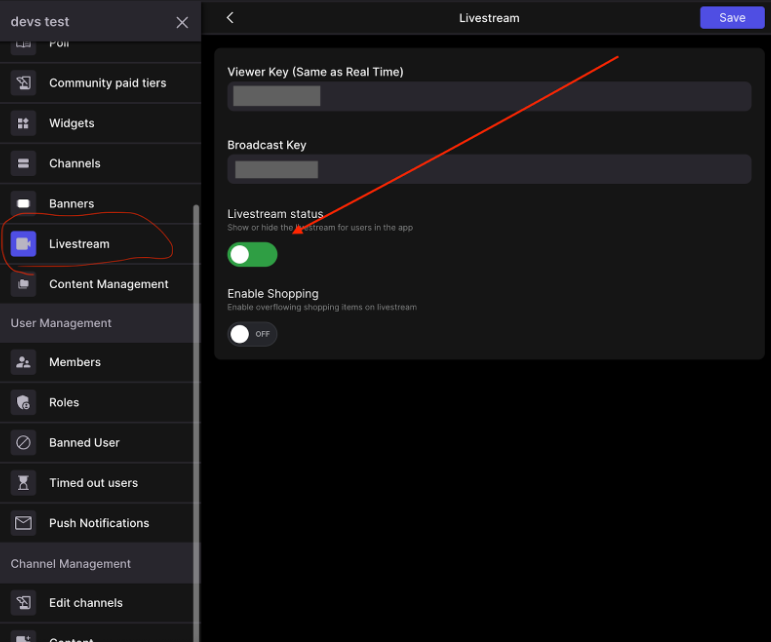
Click: Livestream → Livestream status → turn off the toggle